

How to Create Repository on TFS – Cloud
How to Create Repository on TFS – Cloud
Like github and other online repository solution, you can also make your project repository on TFS at http://tfs.visualstudio.com/. Now online TFS allows you to plan your projects, collaborate with your team, and manage your code online from anywhere.
You can check-In your code directly into the cloud using Visual Studio or Eclipse. You can also manage work items and bugs in Internet Explorer, Chrome, or Safari. Online TFS would store your source code and work items in the cloud.
TFS also allows you to make repository for different platform from C# to Python, from Windows to Android; means a variety of lanuages and platforms.
A free plan for up to 5 users is now available. For making repository on TFS follows the steps as shown below-
Step 1 : SignUp for TFS using WIndows Live ID


Step 2 : SignIn for TFS

Step 3 : TFS Dashboard

Step 3 : Create New Team Project


Step 4 : Team Project Created Successfully

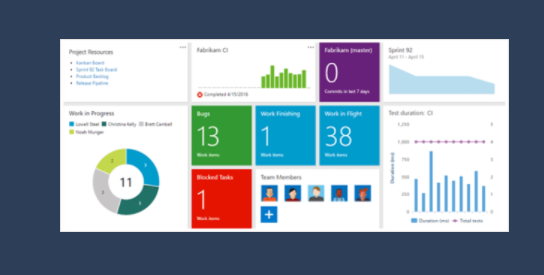
Step 5 : Team Project Dashboard

Step 6 : Team Project Repository Code

Note
- You can only add code into the TFS cloud using Visual Studio or Eclipse. Without using Visual Studio or Eclipse you cannot add code to your online TFS repository.
- Now, You can sign up for the Free Plan of TFS and start using the service for free even with 5 Team Members.
Introduction to TFS
TFS stands for Team Foundation Server which is developed by Microsoft. Integration of TFS with Visual Studio enables a team to work together and organize their efforts to complete a project. Dot Net developers use TFS for source control, bug tracking, requirement gathering and to manage complete life cycle of software development. It has below listed features:-
-
Communication Enhancement
TFS enhance the communication among team members by ensuring that no information or work is lost when a team member hand over his task to team. Project of the team is stored on the TFS and every team member has its own credentials to connect to TFS for accessing the project. TFS provides a central location to team project and each team member coordinate his work at this location.
-
Team Explorer
All members of a team work together on the team project by using Team Explorer in Visual Studio. Team Explorer connects to the TFS and displays team projects from the server. By using Team Explorer, every team member can get updated work items, projects documents and task to do.
-
Roles
Roles can be defined on team project that is on TFS. Each role represents one or more disciplines that are required to successful completion of the team project.
-
Alerts
TFS also provides alerts that are sent to team members by e-mail when something has changed on the team project. We can customize alerts on TFS according to our need.
-
Source Control
TFS allow the team to manage all source files for a project. We can also add non-source files such as important project documents, project plans etc. to TFS.
-
Builds
TFS Build enables the team to create and manage product builds regularly. TFS Build also provides build reports on the status and quality of each build.
-
Tracking Work Status
Using TFS project head can track the assigned work status to developers to understand the health of the project.
-
Work Item History
All working items are logged on TFS with all changes. Anyone can review the complete history of activity on a work item at any time. The working item history can be exported into Microsoft Excel.
-
Reports
Reports related to track status and information (like as work item changes, check-ins and status of product builds etc.) about the project are stored in a database on the TFS.